Showing posts with label Microsoft. Show all posts

Sunday, August 17, 2025

Save Time with AI: Brisk Teaching's New Tools for Teachers


I was reminded about an AI tool from Monica Burns' blog.  This could be a game-changer for getting ready for the new school year. You know that feeling, right? The one where you're drowning in lesson planning, grading, and trying to figure out how to give every student what they need. Well, what if you had an AI assistant that could handle a lot of that for you?

I'm talking about Brisk Teaching, and their new updates are pretty cool. They’re all about saving us time and helping us with that whole differentiated instruction puzzle.

So, What's the Big Deal?

It syncs with Microsoft. This is huge for me as I'm a Microsoft School. Now you can sign in with your Microsoft account, and their new Edge browser extension lets you save all your generated content directly to OneDrive. Super simple. 


Lesson Planning, but Smarter. They have this feature called Brisk Next that gives you personalized suggestions for your lesson plans. It's like having a planning buddy that knows your curriculum.


One Prompt, a Full Unit. This is probably my favorite part. The new Bundles feature can generate a whole set of aligned resources—like handouts, quizzes, and even a quick activity—all from just one prompt. Think of all the time that will save you!

Real-time Student Insights. With Boost Learning Insights, you can get real-time data on how your students are doing. It's great for quickly seeing who’s got it and who needs a little more help.

Grading in a Flash.
Let’s be real, nobody loves grading. But the new Batch Grading feature lets you grade multiple assignments at once with different feedback styles. This could seriously cut down your weekend workload.

I think it's definitely worth checking out. They're even offering three free months of premium access through a special link. 
Let me know if you end up trying it! I'd love to hear what you think.

Monday, February 27, 2023

Why you want to check out Microsoft Search Coach

Search Coach is a tool I learned about last year and think it's a tool that everyone should be using.  We use search engines everyday and this tool teaches students how to form efficient search queries and evaluate their results.  What I really like is that the feedback that Search Coach gives you are tips that you can use on any search engine.   The video below gives you a quick overview of what it is.  Microsoft has also created some lessons that you can use with your students. 


Tuesday, February 7, 2023

How to hide part of a picture in PowerPoint


Many of us use animations PowerPoint and Google Slides to strategically reveal specific information.  Usually, you would select the textbox or image, click on the animations tab and select the animation you want.  The trouble lies when you want to do something like hiding and revealing part of an image.  I made a quick video to show you the process I use for this.  (TLDR: use a shape to cover the part of the image you want to hide.)

As you choose your animations, I have some suggestions.  Don't overdo it; too many animations can be districting.  Along with that choose the right animation; you want it to emphasize key points not distract the kids.   Simple is better.


Monday, January 30, 2023

How to Convert Word to Google


You might be in a school that uses both Google and Microsoft or maybe you came from a Microsoft school and are now in a Google school.  Perhaps you downloaded some Microsoft documents and now want them as Google files.  Either way I made a short video to walk you through the process.
The short of it is that you can either convert files individually or set your Drive to automatically convert all documents to upload.  


Monday, January 9, 2023

6 Basic Formulas your Need in Excel


 I know not everyone loves Excel or Google Sheets as much as I do, but it's something that we use often.  Knowing these basic formulas will help you out and save you time as you do some basic analysis. 

Monday, November 28, 2022

How to insert Superscripts and Subscripts in Word

My students never know how to put in subscripts and superscripts so I made a quick video to show them.  I'm sharing it with you in case you or your students need a quick overview. 


Monday, September 6, 2021

A quick video walkthrough on creating a Microsoft Team


~~~~~~~~~~~~~~ Playlists you might be interested in ~~~~~~~~~~~~~~


~~~~~~~~~~~~~~ Want More??? Let’s connect ~~~~~~~~~~~~~~


Subscribe to my newsletter @ http://eepurl.com/b3w8VH


Follow me on Instagram @ TechSavvySciTeacher


Find me on Facebook @ The Tech Savvy Science Teacher


Follow me on Twitter @ TechSavvySci


E-mail me @ cristina@thetechsavvyscienceteacher.com


Looking for more EdTech Tips? You can find them at www.thetechsavvyscienceteacher.com


In addition, for those Secondary Science Teachers, take a look at http://savvysecondaryscience.blogspot.com or like my science page on Facebook https://www.facebook.com/SecondaryScience

Monday, August 2, 2021

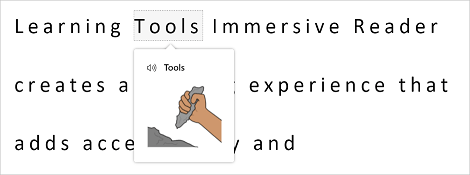
Enhance your reading with Picture Dictionary

Picture Dictionary is a great addition to Microsoft's Immersive Reader. Immersive Reader is in so many apps and websites, Flipgrid, Wonderopolis, Buncee, Wakelet, ThingLink, and Nearpod just to name a few. I especially like this for English Language Learners. When learning English reading (or trying to read) a definition might not be sufficient. They say a picture is worth a thousand words and this is one situation in which I would say this is true.

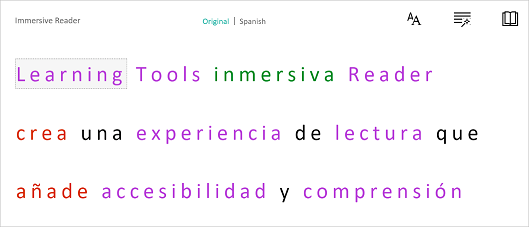
When Immersive Reader mode is one, one can click on a word and a picture pops up.  


Leave a comment and let me know how you would use this in your classroom.

Monday, April 19, 2021

Math Solver App

Math Solver is a website and app that will show you how to solve a problem and create practice problems for you.  While I know that many teachers will scoff at a website like this, I think that they can be very helpful. I do think that it is important for students to to know how to solve these problems themselves, this can be helpful when practicing.  This app will show students how to solve problems and define mathematical concepts, graph problems, and allows students to practice.  As I mentioned this is both a website and an app.  The app has OCR and math problems can be scanned in with the camera on the phone.  

I love the simplicity.  Students choose a topic, see sample problems, and then can practice themselves.  In the end, what I like most about this app/website is that gives students the independence to practice on their own. 


Monday, December 14, 2020

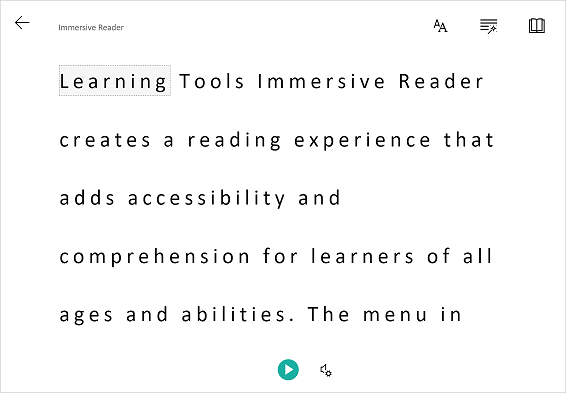
What is Immersive Reader?

You may have heard of Immersive Reader, but if you haven't (or just want to learn a bit more) I got you! It's basically a tool that helps to improve reading comprehension. It's great for new readers, language learner (not just English language learners) and anyone with learning differences such a dyslexia. The best thing is that it works in so many programs! If you want to see some examples of program, this short video goes through many of them.

So let's take a look at some of the things it can do. 


One thing it can do is to isolate content to improve readability.  This can be by highlighting a specific word or only showing a line or two to help focus. 


If you click on a word you can use the picture dictionary to see a graphical representation of the word as well as hear the word spoken. 


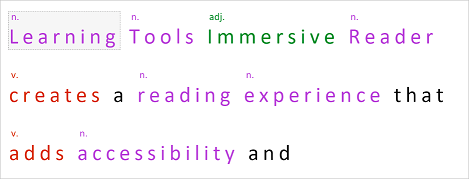
It can also help when learning parts of speech and grammar by highlighting verbs, nouns, pronouns, and more.


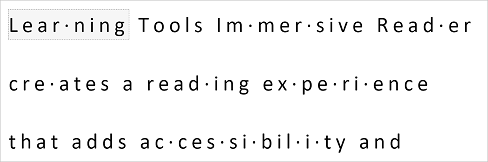
You can break words up into syllables to help new readers sound out words. 


The last thing that I am going to mention is that Immersive Reader can translate text into a wide variety of different languages . The great thing is that all of the above tools also work when the text is translated!


Friday, November 27, 2020

How to take a Screenshot on a Windows computer

 Taking a screenshot is very helpful and is a tool that I use all of the time.  Windows has a built in tool to allow you to take a screenshot of part or the whole screen.  All you need to do is to press the windows, shirt and s keys all at the same time.  If you want to see a video walk though, take a look at the video below. 


Thursday, August 13, 2020

Virtual Summit – Reopening: Innovative Tools & Strategies for Anywhere Learning - August 17-20, 2020

Teq is hosting this free virtual summit to discuss innovative tools and strategies for reopening schools — whether in a traditional, hybrid, or distance learning format.

We would like this to be an open forum where communication is encouraged to get a true understanding of the needs of each school. As always with Teq, there will be opportunities for virtual product showcases throughout the summit and our PD team will be available to answer specific edtech questions.

Sessions will be presented live using Zoom and are 45 minutes (30 minutes with 15 minutes for discussion and Q&A). Here are some of the topics to be addressed at the summit:
  • Effective Organization of Google Drive and Google Classroom
  • Supporting Teachers during Distance Learning with PD
  • Rube Goldberg and Minecraft for Remote STEM Learning
  • Keeping Students Safe in Any Learning Environment (with Gaggle)
  • The Virtual Tech Coach
  • Using Microsoft Teams for Remote Learning

For more information and to register for the summit, please click on the link below.

https://www.teq.com/events/virtual-summit-reopening-innovative-tools-strategies-for-anywhere-learning/

Wednesday, April 15, 2020

How add Text Effects to your Word documents

Text effects are a way to elevate your text.  I made this short video for my students as a reference and wanted to share in case it could be useful to you or your students.


Thursday, April 2, 2020

How to Distribute a Page in OneNote

Below is a quick video on how to distribute a page in Microsoft OneNote.  Let me know if there are any other tips your need a quick video on.  You can check out my whole playlist of Microsoft Tutorials or my channel of EdTech Videos.


Thursday, March 5, 2020

Have you tried PowerPoint's Presenter Coach?


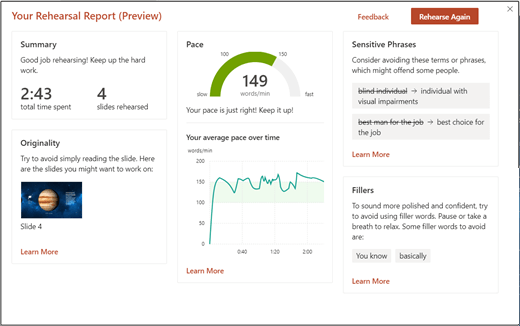
If you haven't heard of, or used, Presenter Coach you are going to love it!  It is a way for you and your students to get feedback on your presentations.  It will give you feedback regarding your pacing, use of filler works such as like and um, use of culturally sensitive terms and if you are reading for the slides.  At the end you will get a report that tells you how long your presentation is, statistics on what you said and suggestions on how to improve.

Watch the video below to see it in action.

    So now that you know what it is, let's get you using it!  Right now it's only available on PowerPoint for the web.  Once you sign in (either with a personal, work or school account) click on the Slide Show tab and select Rehearse with Coach.

    When you are ready, click on Get Started and then start talking.  That's it!  You'll see some suggestions in the lower right of your screen and when you are done a summary report appears.  One thing to note is that it doesn't save the report, so you'll have to take a screenshot of it if you want a copy to refer to later.

    A rehearsal report from Presenter Coach.
image source: https://support.office.com/en-us/article/Rehearse-your-slide-show-with-Presenter-Coach-cd7fc941-5c3b-498c-a225-83ef3f64f07b

Wednesday, December 19, 2018

Did you know you could do these 3 things in PowerPoint?


PowerPoint is something that we all know and use, but it can really do so much more than many people use it for.  Here are three things that I not only like to use myself, but also teach my students how use.

Screen recordings can be so helpful.  I find myself making them at least once a month to show a colleague how something is done.  It is also helpful to record directions for students especially when teaching a new skill.  It's much easier to have students refer back to a video of me instead of repeating myself over and over during the same period.  The easiest way to open the screen recording tool is to locate the box that says "Tell me what you want to do" and type in screen recording.

Adding sounds can be a great way to enhance any presentation.  You can add in music, sound effects or a voice recording.  Sound Recordings is a great way to be able to present when you can't actually be there.  The sound recording and sound upload options are found in the “Insert” menu in PowerPoint.

Microsoft’s Dictate tool will let you dictate the text that you want to have appear in your slides.  This can be especially helpful when working with younger students who can't spell or type well.  It's something that must be added into PowerPoint, but once it's there the students can easily use it.  

Sunday, August 12, 2018

Making a Screen Recording using PowerPoint


Screen recordings can be so helpful.  I find myself making them at least once a month to show a colleague how something is done.  It is also helpful to record directions for students especially when teaching a new skill.  It's much easier to have students refer back to a video of me instead of repeating myself over and over during the same period.  The easiest way to open the screen recording tool is to locate the box that says "Tell me what you want to do" and type in screen recording.


Once you click on Insert Screen Recording, PowerPoint will minimize that the following box will appear. 

You will want to click on select area and highlight the area you want to record.  You can choose to record part or all of the screen.  You can then select or deselect Audio depending on if you want audio also recorded.  If the box is gray, then it is selected.  You can do the same for Record Pointer.  Once you are ready click on the red Record button.  You will get a 3-2-1 countdown and then your recording will start.  The box will disappear and your screen will be recorded.  When you are done with your recording you can either move your mouse up to the top of the screen and the box will appear again for you to stop the recording.  You can also press the windows button, shift and Q at the same time to stop the recording.  

The recording will now appear on a side of your PowerPoint presentation.  You can right click on it to save the video, but you also have the option to do some editing. 


The editing that you can do is pretty basic, but the most useful feature is the ability to trim the video.  To access this, click on Playback in the Video Tools ribbon and then you will see Trim Video.  You can only trim to beginning or ending, but it's helpful to get rid of the extra stuff that you accidentally record.

I hope this helps you in your screen recording endeavors.  Leave a comment if there is something else that you would like to learn about.


Pin this image so you can find this post later on. 

Friday, December 22, 2017

Getting Started with OneNote

For the past year I have been at a Microsoft School.  One of my jobs is teaching students and teachers how to use OneNote.  OneNote is the digital binder system that we use.  It can be difficult when you have many teachers who are at different technology levels.  I always like to provide something for the teachers to do on their own after they leave the pd.  I found this post by a fellow tech coach named Stephanie Elliot with 8 tasks to help you use OneNote.

Click on the image below to be brought to Stephanie's post.
https://www.smore.com/r3zmh-getting-started-with-one-note