Tuesday, April 27, 2021

Zoom gets a new feature -- Immersive View

I am so excited that Zoom now has an Immersive View!  Microsoft Teams has had something similar to this and I was always a little jealous.  So quick overview of what immersive view is.  It's a way to bring participants into a virtual room that actually looks like a room.  There are options that look like classrooms, board rooms, picture galleries, and much more.  You'll need to play around with it to see how it works.  To access immersive view, you can click on the icon in the top right where you can change from gallery and presenter view and now there will be a new option for immersive view. 

Some things to note:

  • you have to be on version 5.6.3 or higher (so check for an update and encourage your students to as well)
  • participants with an older version of zoom will see the normal view
  • most views can have up to 25 people shown, but some allow for less (if there are more than 25 the others will appear at the top of the screen)
  • it does not work in breakout rooms
  • a shared screen will take over for the immersive view
  • as of right now, recordings will look as they always do.
Zoom has a help article if you want more information.

Monday, April 19, 2021

Math Solver App

Math Solver is a website and app that will show you how to solve a problem and create practice problems for you.  While I know that many teachers will scoff at a website like this, I think that they can be very helpful. I do think that it is important for students to to know how to solve these problems themselves, this can be helpful when practicing.  This app will show students how to solve problems and define mathematical concepts, graph problems, and allows students to practice.  As I mentioned this is both a website and an app.  The app has OCR and math problems can be scanned in with the camera on the phone.  

I love the simplicity.  Students choose a topic, see sample problems, and then can practice themselves.  In the end, what I like most about this app/website is that gives students the independence to practice on their own. 


Monday, December 14, 2020

What is Immersive Reader?

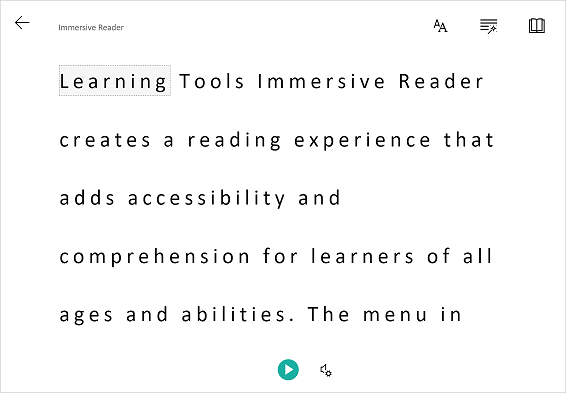
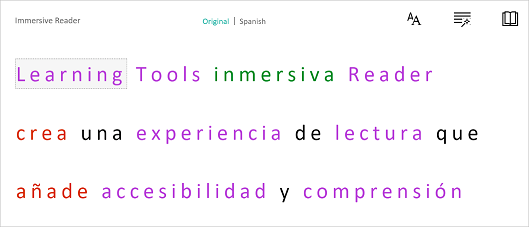
You may have heard of Immersive Reader, but if you haven't (or just want to learn a bit more) I got you! It's basically a tool that helps to improve reading comprehension. It's great for new readers, language learner (not just English language learners) and anyone with learning differences such a dyslexia. The best thing is that it works in so many programs! If you want to see some examples of program, this short video goes through many of them.

So let's take a look at some of the things it can do. 


One thing it can do is to isolate content to improve readability.  This can be by highlighting a specific word or only showing a line or two to help focus. 


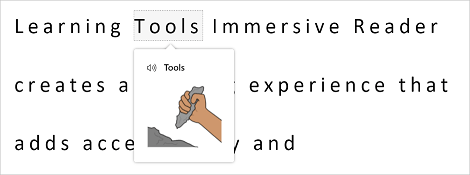
If you click on a word you can use the picture dictionary to see a graphical representation of the word as well as hear the word spoken. 


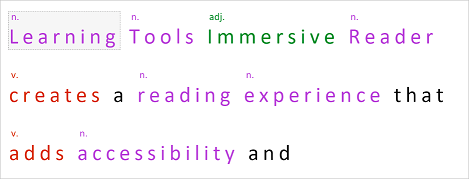
It can also help when learning parts of speech and grammar by highlighting verbs, nouns, pronouns, and more.


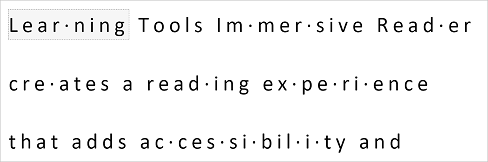
You can break words up into syllables to help new readers sound out words. 


The last thing that I am going to mention is that Immersive Reader can translate text into a wide variety of different languages . The great thing is that all of the above tools also work when the text is translated!


Friday, November 27, 2020

How to take a Screenshot on a Windows computer

 Taking a screenshot is very helpful and is a tool that I use all of the time.  Windows has a built in tool to allow you to take a screenshot of part or the whole screen.  All you need to do is to press the windows, shirt and s keys all at the same time.  If you want to see a video walk though, take a look at the video below. 


Saturday, September 19, 2020

5 iPad tips to make things easier


Here are some tips to help make using your iPad a little bit easier.

1. Put your apps in folders: Making folders helps to keep your screen decluttered and helps your find apps easier.  To create a new folder, long press on an app until it starts to wiggle.  Then drag it on top of another app.  If you already have a folder you can drag your wiggling app to an existing folder.  You will also be able to give your folder a name.  Your iPad will try to come up with a good name, but you can click on it to rename it. 

2. Make the text bigger: If you find things a little to small to see you can change the size of the font.  Click on settings, then display & brightness and then Text Size.  Here you will be able to choose what size you want the font to be. 

3. Define a word: If you come across a word that you don't know the meaning of just long press on it and click "Define" when the menu pops up. 

4. Type an accented letter: If are typing words in foreign language you may need to use an accented latter.  To do this, long press on the letter that you want an accent on and a pop up will appear with options for you to choose from. 

5. Talk to type: I find it much easier to talk out long blocks of text instead of typing it.  Click on the microphone icone on your keyboard and start talking.  You can even say things like period and comma when you want to insert those punctuation marks.  

Leave me your iPad tips.


Thursday, August 20, 2020

New Turnkey Project-Based Learning Resources for High School STEM Teachers


MIT BLOSSOMS, an international education initiative founded in 2008 to encourage high school STEM teachers to pursue more active, student-centered learning, has recently enlarged its focus to support those teachers in moving to Project-Based Learning. Project-Based Learning (PBL) is an emerging teaching/learning strategy. The traditional teaching/learning model has students passively “receiving content” from the teacher, practicing with homework, memorizing for the next exam, and then – tragically – often forgetting it all. PBL offers a substantially different experience where the teacher helps students form small teams and then challenges each team to work on a demanding problem over the course of weeks. The ideal problem is socially important, located in the real world — preferably in the students’ community, and requires mature application of STEM knowledge. The complexity of the problem is such that it has no right or wrong answer, a situation often troubling to students used to formulaic learning. Rather, the team must devise its own procedures for problem framing, formulation, and resolution. In the course of this effort, where now the teacher is mentor or coach, students experience discovery learning — in sharp contrast to taking lecture notes. They also must develop 21st Century skills involving cooperation, collaboration, conflict resolution and reaching out to local professionals who work in the domain of the assigned problem. The team’s problem resolution is typically presented in a final written report and public oral presentation, often with local stakeholders attending. It is a learning exercise that these students will likely never forget!

Yet imagine the challenge for a teacher to design and operate such a PBL project over the course of three to five weeks, while still having to prepare and give lectures for other required topics. This huge teacher preparation “start-up cost” (in terms of time and energy) is certainly one reason why many high school STEM teachers hesitate to try PBL, although they may want to. Our new MIT BLOSSOMS PBL units are designed for just such a teacher – someone who wants to give PBL a try but is not sure just how to get started.

The first five MIT BLOSSOMS PBL units are listed below:


Each of these units is developed to provide a teacher with all the resources and scaffolding needed to lead a three to five-week classroom project. To begin, each unit kicks off from a BLOSSOMS video lesson, thus providing the teacher with anchoring content and clear direction. Teachers have informed us that one of the most useful scaffolds provided in these units is the “Project Calendar,” which offers a detailed, flexible day-by-day schedule for the unit. This calendar includes downloadable resources to lead the project, such as lesson plans, teacher notes, slide presentations, student handouts, homework assignments, etc. — thus removing myriad hours of preparation time for teachers who might not try PBL without such scaffolding. Other valuable resources provided with each of the five BLOSSOMS units include “Video Teacher Guides,” “Summative Assessments,” “Project-Based Learning Tools,” “Teacher Questions/Answers about PBL”, and a discussion of “Common Student Concerns During PBL.”

Education professionals are looking forward to using these new PBL resources. According to Michael Lauro, Associate Executive Director of the Atlantis Charter High School in Fall River, Massachusetts, “We have learned much from collaborating with the MIT BLOSSOMS team over the past three years. We think we have played some role in helping BLOSSOMS define their PBL capabilities, and we look forward to using in our classrooms these five new PBL exercises in the coming academic year.”

Financial support was generously provided to MIT BLOSSOMS by the US OPEN EDUCATION RESOURCES FOUNDATION INC of Ruckersville VA, Lincoln H. Miller, Jr., founder and president.

All content from BLOSSOMS is OER, Open Education Resources, freely available to all.

Thursday, August 13, 2020

Virtual Summit – Reopening: Innovative Tools & Strategies for Anywhere Learning - August 17-20, 2020

Teq is hosting this free virtual summit to discuss innovative tools and strategies for reopening schools — whether in a traditional, hybrid, or distance learning format.

We would like this to be an open forum where communication is encouraged to get a true understanding of the needs of each school. As always with Teq, there will be opportunities for virtual product showcases throughout the summit and our PD team will be available to answer specific edtech questions.

Sessions will be presented live using Zoom and are 45 minutes (30 minutes with 15 minutes for discussion and Q&A). Here are some of the topics to be addressed at the summit:
  • Effective Organization of Google Drive and Google Classroom
  • Supporting Teachers during Distance Learning with PD
  • Rube Goldberg and Minecraft for Remote STEM Learning
  • Keeping Students Safe in Any Learning Environment (with Gaggle)
  • The Virtual Tech Coach
  • Using Microsoft Teams for Remote Learning

For more information and to register for the summit, please click on the link below.

https://www.teq.com/events/virtual-summit-reopening-innovative-tools-strategies-for-anywhere-learning/