Showing posts with label student resources. Show all posts

Monday, December 5, 2022

Orange Slice: Google Doc Rubric Extention


OrangeSlice is a rubric extension for Google Docs that comes in two parts: a teacher rubric and a student rubric.  The teacher rubric works to provide grades and/or feedback to students.  The student rubric can be used for self or peer review.

There are three types of rubrics: holistic, competency and analysis.  A holistic rubric gives the student an average of their performance across all categories you set up.  Competency rubrics gives the student a score based on their weakest category.  An analysis rubric is the one we most think of when thinking of rubrics and gives a number grade based on the total of all categories.   The nice thing is that you can start off with a holistic rubric during the assignment to provide feedback before the assignment is due and then switch to a competency rubric once a final grade is needed. 

Would you be interested in more posts about creating OrangeSlice Rubrics?  Let me know.  You can also view their help doc here.

Monday, December 27, 2021

Grammarly - an extension for better writing

Grammarly Writing Support
We do so much writing on our computers, as do our students.  I always want to make the best impression when sending an email to parents or an administrator and I hate when I find out I sent something with grammar mistakes.  I've been using Grammarly on my computer and I'm ashamed at the number of mistakes that it catches. I've mentioned it to several students and they have been using it for their writing as well

You can use it in several different programs, but I have been using it as an extension in Chrome and Edge, in Outlook, and in Word. There is also a desktop app, but I haven't quite figured out how to use it and these other ways are easy to use.  It does the basics of finding spelling and grammar mistakes but also points out when something is unclear, when you are being wordy and when you aren't consistent in your tone. 

As with most things, there is both a free and paid version. The paid version is $12 a month, but you don't really need it.  While the program will let you know of the number of additional things that can be fixed with the premium version, the free version does enough for me.  Who doesn't want free right?!

If you use Grammarly, let me know what you like about it and what programs you use it in. 

If you want to see it in action, take a look at the video below.


Monday, August 2, 2021

Enhance your reading with Picture Dictionary

Picture Dictionary is a great addition to Microsoft's Immersive Reader. Immersive Reader is in so many apps and websites, Flipgrid, Wonderopolis, Buncee, Wakelet, ThingLink, and Nearpod just to name a few. I especially like this for English Language Learners. When learning English reading (or trying to read) a definition might not be sufficient. They say a picture is worth a thousand words and this is one situation in which I would say this is true.

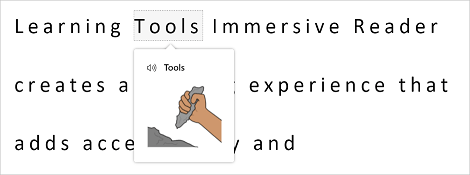
When Immersive Reader mode is one, one can click on a word and a picture pops up.  


Leave a comment and let me know how you would use this in your classroom.

Monday, April 19, 2021

Math Solver App

Math Solver is a website and app that will show you how to solve a problem and create practice problems for you.  While I know that many teachers will scoff at a website like this, I think that they can be very helpful. I do think that it is important for students to to know how to solve these problems themselves, this can be helpful when practicing.  This app will show students how to solve problems and define mathematical concepts, graph problems, and allows students to practice.  As I mentioned this is both a website and an app.  The app has OCR and math problems can be scanned in with the camera on the phone.  

I love the simplicity.  Students choose a topic, see sample problems, and then can practice themselves.  In the end, what I like most about this app/website is that gives students the independence to practice on their own. 


Monday, December 14, 2020

What is Immersive Reader?

You may have heard of Immersive Reader, but if you haven't (or just want to learn a bit more) I got you! It's basically a tool that helps to improve reading comprehension. It's great for new readers, language learner (not just English language learners) and anyone with learning differences such a dyslexia. The best thing is that it works in so many programs! If you want to see some examples of program, this short video goes through many of them.

So let's take a look at some of the things it can do. 


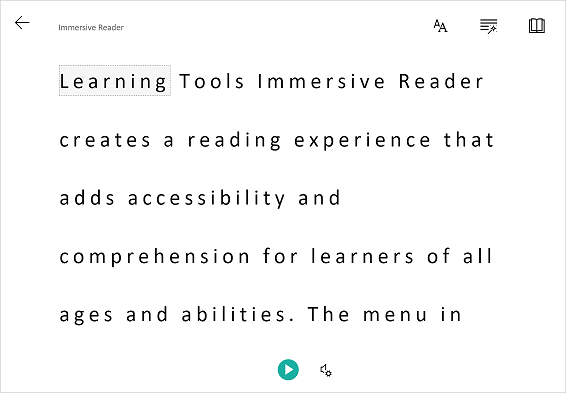
One thing it can do is to isolate content to improve readability.  This can be by highlighting a specific word or only showing a line or two to help focus. 


If you click on a word you can use the picture dictionary to see a graphical representation of the word as well as hear the word spoken. 


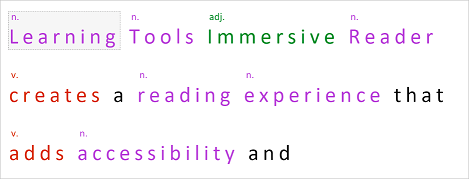
It can also help when learning parts of speech and grammar by highlighting verbs, nouns, pronouns, and more.


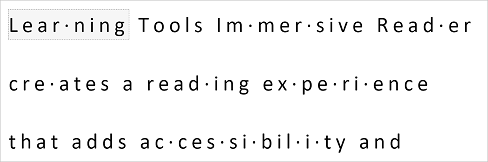
You can break words up into syllables to help new readers sound out words. 


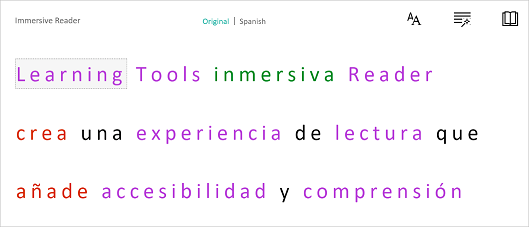
The last thing that I am going to mention is that Immersive Reader can translate text into a wide variety of different languages . The great thing is that all of the above tools also work when the text is translated!


Thursday, March 5, 2020

Have you tried PowerPoint's Presenter Coach?


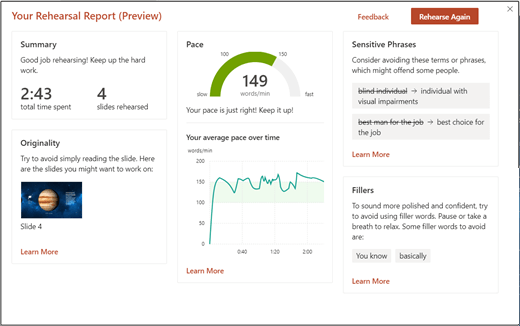
If you haven't heard of, or used, Presenter Coach you are going to love it!  It is a way for you and your students to get feedback on your presentations.  It will give you feedback regarding your pacing, use of filler works such as like and um, use of culturally sensitive terms and if you are reading for the slides.  At the end you will get a report that tells you how long your presentation is, statistics on what you said and suggestions on how to improve.

Watch the video below to see it in action.

    So now that you know what it is, let's get you using it!  Right now it's only available on PowerPoint for the web.  Once you sign in (either with a personal, work or school account) click on the Slide Show tab and select Rehearse with Coach.

    When you are ready, click on Get Started and then start talking.  That's it!  You'll see some suggestions in the lower right of your screen and when you are done a summary report appears.  One thing to note is that it doesn't save the report, so you'll have to take a screenshot of it if you want a copy to refer to later.

    A rehearsal report from Presenter Coach.
image source: https://support.office.com/en-us/article/Rehearse-your-slide-show-with-Presenter-Coach-cd7fc941-5c3b-498c-a225-83ef3f64f07b

Tuesday, February 4, 2020

Student Certification in Digital Citizenship, Study Habits and more


Edpuzzle offers student certifications on a number of topics. If you haven't familiar with Edpuzzle take a look at my previous post about it. Basically it's a way to embed questions into videos and allow you to track students' progress.


You can assign students topics such as: digital citizenship, equal rights, personal finance, emotional intelligence, learning and study habits, health and building character. Each topic has many videos inside it, so you can choose which ones you want to assign to your students. I also like that there are options to add in closed captions and prevent students from skipping ahead.

Tuesday, November 19, 2019

Turn any video into an assignment

Edpuzzle is a website that you can use to take any video and turn it into an assignment.  This is especially useful if you are using the flipped classroom model.  In a nutshell, Edpuzzle lets you embed questions, audio and notes into the video.  You then assign the video to your class and you get a ton of analytics such as who watched the video and who struggled or did well.  Students can re-watch the video as many times as they need at their own pace, while you can easily check their progress from your account.

Edpuzzle offers free online courses to not only help you understand how to best use Edpuzzle in your classroom, but also includes topics such as the flipped classroom, gamification, project based learning, twenty-first century learning and much more.  What's even better is that they are offered on the Edpuzzle platform so you can experience what your students will. 

Sunday, October 27, 2019

Customize your textbook

I have not found a textbook that includes all of the information that I want and leaves out the information that I don't.  I started using CK12 Flexbooks a while ago and love it because I can make the textbook my own.  Plus there are videos that can be added in,  Take a look at the video below on how to customize these online textbooks.


Thursday, October 10, 2019

Asteroid Blasting Review Game


Kupiter is a study website that looks like fun for your students.  It's great to review vocabulary and other content.  Students shoot at letter to spell the word to complete the sentence or match the definition. Students get points based on how accurately and quickly questions are answered.  One of the things I like most is that it works on all devices, so students don't need to download an app.  You can create a class so that there is a leaderboard.  This, along with the explosions and powerups, can really be a motivator for students.

You can create your own game on Kupiter by writing questions from scratch or by importing them from Quizlet or an Excel spreadsheet. Game links can be shared via social media and Google Classroom.

Watch the short video below for a demonstration of how the game is played.


What review games do you use in your classroom? 

Sunday, August 18, 2019

Free Online Textbooks for College level and AP classes

OpenStax is a nonprofit educational initiative based at Rice University, and its mission is to give every student the tools they need to be successful in the classroom.  In short, it's free online textbooks for the college and AP level.  Many colleges have already started using these resources as a way to help students save money.  Now high schools have starting catching on and have begun using them as well.  You may be familiar with CK12 for high school level textbooks; this is just the next step up. 

OpenStax gives instructor resources such as PowerPoint slides, solution manual, sample syllabus, and assessment banks.  In addition, it also offers connections to various technology resources.  There are a few options to read these books.  You can read them online, download them as a PDF or even send them to your Kindle.  They also offer an option to order print copies from Amazon or buy them in bulk if you want.

Topics include:

Math
  • Prealgebra
  • Algebra (Elementary, Intermediate and College)
  • Trigonometry
  • Precalculus
  • Calculus
  • Statistics

Science
  • Anatomy and Physiology
  • Astronomy
  • Biology
  • Concepts of Biology
  • Microbiology
  • Chemistry
  • Physics

Social studies
  • American Government
  • Economics (principles, macro and micro)
  • Psychology
  • Sociology
  • US History

Buisness
  • Intro to Business
  • Business Ethics
  • Principles of Accounting

AP
  • Biology
  • College Physics
  • Principles of Macroeconomics
  • Principles for Microeconomics


Thursday, February 21, 2019

Free Math and Science Online Textbooks

“I can’t find my textbook!” “I don’t remember getting a textbook.” Does this sound familiar to you? That is what I kept hearing at the end of every year. Then I would have to go through a big hassle of collecting money from student to repurchase the outdated textbooks that I had. I hated having to worry about students losing textbooks or that I was always replacing textbooks that I didn’t even want that included too much information or not enough information. Enter FlexBooks. FlexBooks are online textbooks from a company called CK12. I instantly liked them for many reasons, but the two big ones were that I could customize the book and that it could be posted on my website and downloaded by the students. This video does a great job of explaining how they work. While not every subject has a FlexBook they have a large list of books that include math and science books for elementary, middle and high school along with some other areas such as Writing, Astronomy, History and Engineering.

So, this sounds good you say, but how can I really use it in my classroom? I picked out a textbook that I wanted to use and then went through it to delete the things that don’t apply to my curriculum. I also added in some information that wasn’t there that I wanted to make sure my students had in their book. You can also include links to worksheets (CK12 has a workbook that goes along with most of their textbooks). Once it’s created you can save it as a PDF and post it on a web page or e-mail it to students. Even better, students can put the PDF on their computers, phones, Kindles, IPads, Nooks or other eReader. If you don’t want to customize your book you can find select FlexBooks already in Kindle or Nook/IPad/Android format.

Am I convincing you yet? Maybe you want to make sure you have a teacher’s edition to refer to or a book or worksheets or labs. Well, you got it! The workbooks that are available can also be customized so can you make them fit your classroom. I usually post them on my website and the students can have access to them all the time (no more “I lost it.”)

Looking for more? CK12 has a more interactive way of presenting information that allows you pull short concepts along with chapters into an online interactive “book” Many of the concepts include video clips and interactive quizzes.

Do you use textbooks in your classroom? 

crossposted on by Science Blog - SavvySecondaryScience

Monday, January 21, 2019

Turning Google Docs Footnotes into Endnotes


In my schoolwe don't ask the students to use footnotes.  Rather we have students do a works cited page at the end of their document.  If you are school that uses Google then you might be familiar with the autocitation feature of Google Docs.  This is really helpful for students, but the problem is that it creates footnotes, not endnotes.  In the past, I have had my students copy the footnotes and paste them at the end of their paper.  While not terrible, students often forget or don't capture the whole citation.  I recently came across a Google Doc add-in called Endnote Generator and I think it's just what my students need.  Is this something that you think you would use with your students?  Do you know of something similar?

Wednesday, December 19, 2018

Did you know you could do these 3 things in PowerPoint?


PowerPoint is something that we all know and use, but it can really do so much more than many people use it for.  Here are three things that I not only like to use myself, but also teach my students how use.

Screen recordings can be so helpful.  I find myself making them at least once a month to show a colleague how something is done.  It is also helpful to record directions for students especially when teaching a new skill.  It's much easier to have students refer back to a video of me instead of repeating myself over and over during the same period.  The easiest way to open the screen recording tool is to locate the box that says "Tell me what you want to do" and type in screen recording.

Adding sounds can be a great way to enhance any presentation.  You can add in music, sound effects or a voice recording.  Sound Recordings is a great way to be able to present when you can't actually be there.  The sound recording and sound upload options are found in the “Insert” menu in PowerPoint.

Microsoft’s Dictate tool will let you dictate the text that you want to have appear in your slides.  This can be especially helpful when working with younger students who can't spell or type well.  It's something that must be added into PowerPoint, but once it's there the students can easily use it.  

Monday, November 26, 2018

252 iPad Apps for your Classroom


Ipads are great to have in the classroom.  When I got my first set (even though it was only 4), I was so excited to use them with my students.  Then reality sets in and you need to figure out how to use them.  What apps are you going to use?  Where do you even look for apps?  AskATechTeacher.com has created a list of her favorite iPad apps and placed them into categories.  Even if you think you have enough apps for your classroom iPads, I suggest that you take a look at her list and see if you can find anything new.

What are some of your favorite iPad apps that you use in the classroom? 

Sunday, August 12, 2018

Making a Screen Recording using PowerPoint


Screen recordings can be so helpful.  I find myself making them at least once a month to show a colleague how something is done.  It is also helpful to record directions for students especially when teaching a new skill.  It's much easier to have students refer back to a video of me instead of repeating myself over and over during the same period.  The easiest way to open the screen recording tool is to locate the box that says "Tell me what you want to do" and type in screen recording.


Once you click on Insert Screen Recording, PowerPoint will minimize that the following box will appear. 

You will want to click on select area and highlight the area you want to record.  You can choose to record part or all of the screen.  You can then select or deselect Audio depending on if you want audio also recorded.  If the box is gray, then it is selected.  You can do the same for Record Pointer.  Once you are ready click on the red Record button.  You will get a 3-2-1 countdown and then your recording will start.  The box will disappear and your screen will be recorded.  When you are done with your recording you can either move your mouse up to the top of the screen and the box will appear again for you to stop the recording.  You can also press the windows button, shift and Q at the same time to stop the recording.  

The recording will now appear on a side of your PowerPoint presentation.  You can right click on it to save the video, but you also have the option to do some editing. 


The editing that you can do is pretty basic, but the most useful feature is the ability to trim the video.  To access this, click on Playback in the Video Tools ribbon and then you will see Trim Video.  You can only trim to beginning or ending, but it's helpful to get rid of the extra stuff that you accidentally record.

I hope this helps you in your screen recording endeavors.  Leave a comment if there is something else that you would like to learn about.


Pin this image so you can find this post later on. 

Thursday, July 12, 2018

Survey your class - beyond Socrative and Kahoot

Many of you already know about Socrative and Kahoot and, if you are like me, you love them. 
Sometimes I wonder if I'm using Kahoot too much that it's going to lose it's impact.  I found some other websites that you might be interested in using in your classroom.

The first one I am loving is called Acquainted.  Each poll is called a conversation.  The student interface looks like a text message and it's very easy for the teacher to set.  You choose a welcome message, ask the questions and write a goodbye message.  All of the questions are multiple choice and you can choose to put in a response for each answer choice.  So if you are asking students questions about the lesson you can give them feedback as to if they choose the right answer or why their answer is wrong.  You can see the results as a bar graph, but won't be able to identify which student choose which answer.  I still think it's a valuable tool particularly with the feedback that you are able to provide.

Swift is a polling platform that can be used via web and/or text.  It also allowed open ended responses.  You are limited with the free plan and can only have 50 responses per 30 days.  What is nice about it is that you can embed a poll (like I did below) on a website or in a PowerPoint.  The option to send students to a new page after submitting a text response could help you keep your students on task. The option to instantly show poll results could be helpful in starting discussions in your classroom.


Can't see this? Click here

Last up is Poll Everywhere.  This was one of the first surveying/polling website I remember.  What I liked about it was the your students could respond via text messaging.  This was great when students had phone that could only text and not get online.  You can still have student respond via text, but there is also a website that students can use which is ideal if you have laptops or ipads that your students are using.
Poll Everywhere has a lot of different choices and I'm sure you will find one that suits you.


Wednesday, January 24, 2018

Quickly Summarize a Passage of Text

SummarizeThis is a website that will summarize the main point(s) of articles and passages.  All you need to do is to paste in a block of text and a summary will be generated.  This can be helpful when students are doing a research paper and want to know if a specific article will be relevant.  It can be a great time saver so that you don't have to read a long passage only to find that it's not relevant to what you need.