Wayground (you know them, they used to be Quizziz), created a quiz game you can use with your students to help them understand what to do. You can also edit the quiz to better meet the needs of your class or school.
Showing posts with label teacher resources. Show all posts
Sunday, September 14, 2025
Teaching Students Email Etiquette
Does it drive you crazy when you get an email from a student and they put the whole message in the subject line? Or they write like they are talking to a friend, " hey can u plz send the hw thx"
Sunday, August 31, 2025
What's a good app/website to use in your classroom?
In today's digital age, educators are inundated with so many tools and resources. It's often hard to figure out what is good to use and Common Sense Education is a great site to help you out with this.
Why Common Sense Education?
Classroom Application: Imagine integrating a new app into your lesson plan. Before implementation, consult Common Sense Education's reviews to assess its suitability. Additionally, utilize their digital citizenship lessons to prepare students for responsible usage.
Common Sense Education isn't just a resource; it's a partner in fostering a safe and effective digital learning environment.
- Comprehensive Reviews: Offers unbiased evaluations of edtech tools, helping educators make informed decisions.
- Digital Citizenship Curriculum: Provides age-appropriate lessons to instill responsible online behavior in students.
- Professional Development: Features webinars, articles, and training materials to enhance teachers' digital literacy.
Classroom Application: Imagine integrating a new app into your lesson plan. Before implementation, consult Common Sense Education's reviews to assess its suitability. Additionally, utilize their digital citizenship lessons to prepare students for responsible usage.
Common Sense Education isn't just a resource; it's a partner in fostering a safe and effective digital learning environment.
Sunday, August 17, 2025
Save Time with AI: Brisk Teaching's New Tools for Teachers
I was reminded about an AI tool from Monica Burns' blog. This could be a game-changer for getting ready for the new school year. You know that feeling, right? The one where you're drowning in lesson planning, grading, and trying to figure out how to give every student what they need. Well, what if you had an AI assistant that could handle a lot of that for you?
I'm talking about Brisk Teaching, and their new updates are pretty cool. They’re all about saving us time and helping us with that whole differentiated instruction puzzle.
So, What's the Big Deal?
It syncs with Microsoft. This is huge for me as I'm a Microsoft School. Now you can sign in with your Microsoft account, and their new Edge browser extension lets you save all your generated content directly to OneDrive. Super simple.
One Prompt, a Full Unit. This is probably my favorite part. The new Bundles feature can generate a whole set of aligned resources—like handouts, quizzes, and even a quick activity—all from just one prompt. Think of all the time that will save you!
Lesson Planning, but Smarter. They have this feature called Brisk Next that gives you personalized suggestions for your lesson plans. It's like having a planning buddy that knows your curriculum.
Real-time Student Insights. With Boost Learning Insights, you can get real-time data on how your students are doing. It's great for quickly seeing who’s got it and who needs a little more help.
Grading in a Flash. Let’s be real, nobody loves grading. But the new Batch Grading feature lets you grade multiple assignments at once with different feedback styles. This could seriously cut down your weekend workload.
I think it's definitely worth checking out. They're even offering three free months of premium access through a special link.
Let me know if you end up trying it! I'd love to hear what you think.
Saturday, May 3, 2025
Innovate and Inspire: Leveraging Edutopia
Staying updated with effective teaching strategies is crucial. Edutopia offers a treasure trove of research-backed practices and real-world classroom insights.
Why Edutopia?
- Diverse Content: From project-based learning to social-emotional learning, explore a wide range of topics.
- Practical Resources: Access videos, articles, and case studies that provide actionable strategies.
- Community Engagement: Join a community of educators sharing experiences and best practices.
- Classroom Application: Implement project-based learning by having students design experiments to solve real-world problems. Utilize Edutopia's resources to structure and assess these projects effectively.
Tuesday, April 25, 2023
Cast your Android device to your computer
Vysor is a program I like because it works with Android and iOS and has wired and wireless options. Of course, what I like most is that there is a free option. You are limited to the wired option in the free version, but I actually like that because it glitches less. Plus you don't have to worry about the devices being on the same wifi network. I also like that can use your computer mouse and keyboard to control your phone. One thing to note is that you have to enable USB debugging on your phone. Here is a quick article on how to do that.
The free version will display a short ad every half hour or so. If you decide to upgrade, in addition to removing ads, you will get some other features that include fullscreen mode, drag and drop files and the ability to share your screen with someone with the link.
Sunday, March 12, 2023
Problem-Attic Test Generator
Problem-Attic is a website that provides teachers with a database of questions from state and national assessments to create tests and worksheets.
If you are looking for a bank of question from the NYS Regents, SAT, AP Exams or other state assessments, Problem-Attic might be what you are looking for.
The video below will give you a quick overview of what it is all about.
Monday, January 16, 2023
5 Free Programs to create Screen recordings
If you are looking to make a screen recording, there are so many free programs about there that you can use. Here are my top five. They are roughly in order of my favorites (it's hard to pick a favorite!) I've listed some features of each and will include links to more in depth tutorials on each. Let me know what your tool of choice is.
- Loom
- web based and downloadable program
- freemium (teachers can get the premium version for free)
- camera and screen options
- option to highlight cursor and annotate the screen
- Screencastify
- web based (extension for Chrome or Edge)
- must have a Google account, option to connect to Google Classroom to accept video assignments
- Free or paid options
- 10 video limit for free version, 30 minutes per video
- Ability to add interactive questions
- option to annotate the screen, highlight the cursor and add stickers
- camera and screen options
- Powerpoint
- desktop version only (paid)
- unlimited time
- no annotation options
- Screencast -o- matic
- web, tablet, and desktop versions (options to upgrade for premium features)
- option for screenshots and annotations
- 15 minute video limit
- connects with variety of LMS
- QuickTime
- Mac only
- Desktop only
- option to connect iPhone or iPad to record that screen
Monday, December 5, 2022
Orange Slice: Google Doc Rubric Extention
OrangeSlice is a rubric extension for Google Docs that comes in two parts: a teacher rubric and a student rubric. The teacher rubric works to provide grades and/or feedback to students. The student rubric can be used for self or peer review.
There are three types of rubrics: holistic, competency and analysis. A holistic rubric gives the student an average of their performance across all categories you set up. Competency rubrics gives the student a score based on their weakest category. An analysis rubric is the one we most think of when thinking of rubrics and gives a number grade based on the total of all categories. The nice thing is that you can start off with a holistic rubric during the assignment to provide feedback before the assignment is due and then switch to a competency rubric once a final grade is needed.
Would you be interested in more posts about creating OrangeSlice Rubrics? Let me know. You can also view their help doc here.
Monday, February 21, 2022
Everything you need to know to teach with Google
The Google for Education Training Center is your one stop shop for professional development on using Google tools in your classroom, both for you and your students. Here you will find step by stop videos on integrating Google Classroom, Sheets, Docs and others into your classroom. There are user guides for each product along with quick tips sheets.
You will find lesson plans that are a combination of teaching students to use these tools and a variety of content areas.
If you want more, you can take one of two tests to earn Google Certification or apply be a Certified Trainer, Coach or Innovator. Lastly there are the communities to connect with other Google Educators in your area.
Tuesday, February 15, 2022
Crossword Labs - easily make crossword puzzles
Crosswords can be a fun way for students to review or a great activity for the students who finish early. The problem is that it is hard to find a crossword puzzle that goes along with the content you are teaching. Crossword Lab is a free site that allows you to easily make your own crossword puzzles. All you need to do is to enter the word that should appear in the puzzle and then the clue for it. For example: dog man's best friend. In this example dog would be the word that would be in the puzzle and man's best friend would be the clue written.
Give it a try and let me know what you think!
Monday, December 27, 2021
Grammarly - an extension for better writing
We do so much writing on our computers, as do our students. I always want to make the best impression when sending an email to parents or an administrator and I hate when I find out I sent something with grammar mistakes. I've been using Grammarly on my computer and I'm ashamed at the number of mistakes that it catches. I've mentioned it to several students and they have been using it for their writing as well
You can use it in several different programs, but I have been using it as an extension in Chrome and Edge, in Outlook, and in Word. There is also a desktop app, but I haven't quite figured out how to use it and these other ways are easy to use. It does the basics of finding spelling and grammar mistakes but also points out when something is unclear, when you are being wordy and when you aren't consistent in your tone.
As with most things, there is both a free and paid version. The paid version is $12 a month, but you don't really need it. While the program will let you know of the number of additional things that can be fixed with the premium version, the free version does enough for me. Who doesn't want free right?!
If you use Grammarly, let me know what you like about it and what programs you use it in.
If you want to see it in action, take a look at the video below.
Tuesday, April 27, 2021
Zoom gets a new feature -- Immersive View
I am so excited that Zoom now has an Immersive View! Microsoft Teams has had something similar to this and I was always a little jealous. So quick overview of what immersive view is. It's a way to bring participants into a virtual room that actually looks like a room. There are options that look like classrooms, board rooms, picture galleries, and much more. You'll need to play around with it to see how it works. To access immersive view, you can click on the icon in the top right where you can change from gallery and presenter view and now there will be a new option for immersive view.
Some things to note:
- you have to be on version 5.6.3 or higher (so check for an update and encourage your students to as well)
- participants with an older version of zoom will see the normal view
- most views can have up to 25 people shown, but some allow for less (if there are more than 25 the others will appear at the top of the screen)
- it does not work in breakout rooms
- a shared screen will take over for the immersive view
- as of right now, recordings will look as they always do.
Zoom has a help article if you want more information.
Friday, May 15, 2020
Easily make screen recordings (with or without your face)
Screencastify if one of my favorite screen recording tools. A few quick notes before I talk about it more; you have to be using the Google Chrome browser, have a Google account and the free version has a recording limit of five minutes.
![]() |
To start you'll visit the Screencastify web page and install the extension.
Once you have installed the extension, you will see pink arrow that represents Screencastify. To get things going you will have to click on it and activate your account. You will have to agree to some permissions and then you'll be ready to go! You have three options to making a recording: desktop, tab or webcam. Desktop and tab recording are similar. In both cases you will be recording your screen. The desktop option allows you to record everything one your screen no matter what window it is in. The tab option gives the option to record just one tab in your browser. This means that anything that doesn't happen inside that one tab won't be in the recording. For both of these, you have the option to add in your webcam in the bottom corner of the screen. This allows the view to see you as well as your screen. The last option is webcam and this is what it sounds like. You will be using your webcam and anything in front of it will be recorded.
Once you are done with your recording it will be saved for you in Google Drive. Now you have the option to share it with others, embed the video, do some simple editing or download it to use or edit elsewhere.
Now that you know how to make recordings, what will you record?
Friday, April 10, 2020
How to use Screencastify for free screen recording
Screencastify is a Chrome extension (meaning that it only works on in the Chrome browser) that allows you to record what is happening on your computer screen. While there are a number of other screen recording tools that you can use, this one is my favorite. Let's take a look at its features:
- you can record a browser tab, your whole screen or just your webcam
- you can add your webcam into a browser tab or whole screen recording
- it can record offline!
- drawing tools to annotate
- spotlight tool to call attention to something
- highlights your mouse clicks
- recordings save in Google Drive
- option to upload directly to Google Classroom or YouTube
- export recording as an MP4 (video file) or an animated GIF
- basic video editor
As I mentioned earlier, this tool is free, but there is a limit of 5 minutes per video. If you want the ability to record longer videos the paid version is $29 per year. In addition to the extended recording time the paid version also give you additional editing features.
It's honestly a very easy program to use and I think you can figure it out by just playing around with it (that's what I recommend for most things), but they do have some training resources that you check out as well. Plus you can earn a fun badge and certificate if you take the whole training courses.
Saturday, April 4, 2020
Quizlet Teacher is available for Free through June, 30, 2020
Quizlet Teacher includes Class Progress, a formative assessment tool that can help track students' progress. You'll also get access to advanced content creation tools, such as diagrams and audio, which enable you to create custom study materials for your class.
For more information on how to create better, more dynamic sets or use Class Progress, check out our Help Center.
Thursday, March 5, 2020
Have you tried PowerPoint's Presenter Coach?
Watch the video below to see it in action.
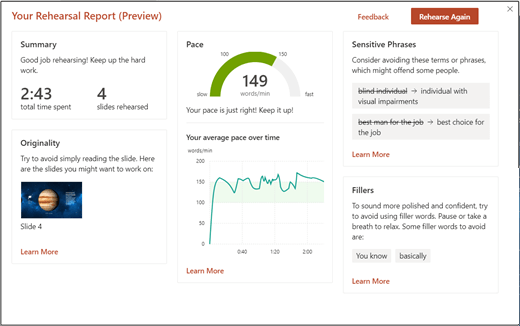
- So now that you know what it is, let's get you using it! Right now it's only available on PowerPoint for the web. Once you sign in (either with a personal, work or school account) click on the Slide Show tab and select Rehearse with Coach.
When you are ready, click on Get Started and then start talking. That's it! You'll see some suggestions in the lower right of your screen and when you are done a summary report appears. One thing to note is that it doesn't save the report, so you'll have to take a screenshot of it if you want a copy to refer to later.

Tuesday, November 19, 2019
Turn any video into an assignment
Edpuzzle is a website that you can use to take any video and turn it into an assignment. This is especially useful if you are using the flipped classroom model. In a nutshell, Edpuzzle lets you embed questions, audio and notes into the video. You then assign the video to your class and you get a ton of analytics such as who watched the video and who struggled or did well. Students can re-watch the video as many times as they need at their own pace, while you can easily check their progress from your account.
Edpuzzle offers free online courses to not only help you understand how to best use Edpuzzle in your classroom, but also includes topics such as the flipped classroom, gamification, project based learning, twenty-first century learning and much more. What's even better is that they are offered on the Edpuzzle platform so you can experience what your students will.
Tuesday, November 12, 2019
How to play Quizlet Live
Quizlet Live launched several years ago, but it's still one of my favorite games to play with my students. Basically it takes a Quizlet set and turns it into a collaborative game. Once you open the set that you want to use and select the live option a website and code are presented to students. Students are assigned to teams and then they they need to work together to answer the questions. Each student will have a possible response on his/her device, but only one person on the team will have the correct answer. This means that students need to talk with one another to make sure that the wrong answer isn't selected. If it is, the team's score resets itself.
When I really want to challenge my students, I don't let them sit with their teams. This means they really need to know their stuff as they won't be able to talk with their team. Students run the risk of having the correct answer, but not knowing it or thinking they know the answer when it's actually wrong.
What are some of your favorite review games?
When I really want to challenge my students, I don't let them sit with their teams. This means they really need to know their stuff as they won't be able to talk with their team. Students run the risk of having the correct answer, but not knowing it or thinking they know the answer when it's actually wrong.
What are some of your favorite review games?
Sunday, October 27, 2019
Customize your textbook
I have not found a textbook that includes all of the information that I want and leaves out the information that I don't. I started using CK12 Flexbooks a while ago and love it because I can make the textbook my own. Plus there are videos that can be added in, Take a look at the video below on how to customize these online textbooks.
Thursday, October 10, 2019
Asteroid Blasting Review Game
Kupiter is a study website that looks like fun for your students. It's great to review vocabulary and other content. Students shoot at letter to spell the word to complete the sentence or match the definition. Students get points based on how accurately and quickly questions are answered. One of the things I like most is that it works on all devices, so students don't need to download an app. You can create a class so that there is a leaderboard. This, along with the explosions and powerups, can really be a motivator for students.
You can create your own game on Kupiter by writing questions from scratch or by importing them from Quizlet or an Excel spreadsheet. Game links can be shared via social media and Google Classroom.
Watch the short video below for a demonstration of how the game is played.
What review games do you use in your classroom?
Subscribe to:
Posts (Atom)