Showing posts with label online assignments. Show all posts

Sunday, March 12, 2023

Problem-Attic Test Generator

Problem-Attic is a website that provides teachers with a database of questions from state and national assessments to create tests and worksheets. 

If you are looking for a bank of question from the NYS Regents, SAT, AP Exams or other state assessments, Problem-Attic might be what you are looking for.

The video below will give you a quick overview of what it is all about.


Monday, February 27, 2023

Why you want to check out Microsoft Search Coach

Search Coach is a tool I learned about last year and think it's a tool that everyone should be using.  We use search engines everyday and this tool teaches students how to form efficient search queries and evaluate their results.  What I really like is that the feedback that Search Coach gives you are tips that you can use on any search engine.   The video below gives you a quick overview of what it is.  Microsoft has also created some lessons that you can use with your students. 


Monday, December 5, 2022

Orange Slice: Google Doc Rubric Extention


OrangeSlice is a rubric extension for Google Docs that comes in two parts: a teacher rubric and a student rubric.  The teacher rubric works to provide grades and/or feedback to students.  The student rubric can be used for self or peer review.

There are three types of rubrics: holistic, competency and analysis.  A holistic rubric gives the student an average of their performance across all categories you set up.  Competency rubrics gives the student a score based on their weakest category.  An analysis rubric is the one we most think of when thinking of rubrics and gives a number grade based on the total of all categories.   The nice thing is that you can start off with a holistic rubric during the assignment to provide feedback before the assignment is due and then switch to a competency rubric once a final grade is needed. 

Would you be interested in more posts about creating OrangeSlice Rubrics?  Let me know.  You can also view their help doc here.

Monday, February 28, 2022

2022 Kahoot! Meetup


Share your stories, connect with teachers, and amplify awesome!


Join us for a free virtual PD event where you will learn:
      • How teachers around the world engage their students
      • Best practices for using Kahoot! at every age level
      • Updates from Kahoot! at School and Kahoot! Academy
And of course, play lots of kahoots!

Thursday, March 17th
10:00am - 2:00pm PDT


Register early for a chance to win awesome swag!


Not able to attend? Register to receive a recording of the event and a recap of the main takeaways!
 

Saturday, April 4, 2020

Quizlet Teacher is available for Free through June, 30, 2020


During the current outbreak of COVID-19, Quizlet’s goal is to support teachers and students in all impacted areas. To help with remote teaching and student engagement while schools are closed, they are providing free access to Quizlet Teacher through June 30, 2020.

Quizlet Teacher includes Class Progress, a formative assessment tool that can help track students' progress. You'll also get access to advanced content creation tools, such as diagrams and audio, which enable you to create custom study materials for your class.

For more information on how to create better, more dynamic sets or use Class Progress, check out our Help Center.

Thursday, April 2, 2020

How to Distribute a Page in OneNote

Below is a quick video on how to distribute a page in Microsoft OneNote.  Let me know if there are any other tips your need a quick video on.  You can check out my whole playlist of Microsoft Tutorials or my channel of EdTech Videos.


Thursday, March 5, 2020

Have you tried PowerPoint's Presenter Coach?


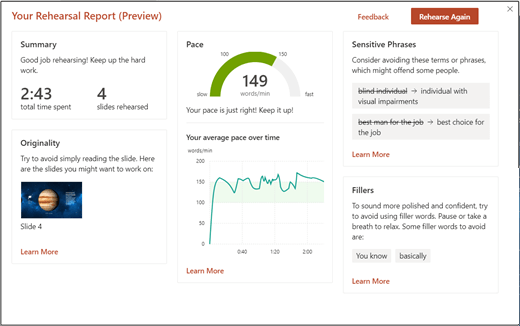
If you haven't heard of, or used, Presenter Coach you are going to love it!  It is a way for you and your students to get feedback on your presentations.  It will give you feedback regarding your pacing, use of filler works such as like and um, use of culturally sensitive terms and if you are reading for the slides.  At the end you will get a report that tells you how long your presentation is, statistics on what you said and suggestions on how to improve.

Watch the video below to see it in action.

    So now that you know what it is, let's get you using it!  Right now it's only available on PowerPoint for the web.  Once you sign in (either with a personal, work or school account) click on the Slide Show tab and select Rehearse with Coach.

    When you are ready, click on Get Started and then start talking.  That's it!  You'll see some suggestions in the lower right of your screen and when you are done a summary report appears.  One thing to note is that it doesn't save the report, so you'll have to take a screenshot of it if you want a copy to refer to later.

    A rehearsal report from Presenter Coach.
image source: https://support.office.com/en-us/article/Rehearse-your-slide-show-with-Presenter-Coach-cd7fc941-5c3b-498c-a225-83ef3f64f07b

Tuesday, February 4, 2020

Student Certification in Digital Citizenship, Study Habits and more


Edpuzzle offers student certifications on a number of topics. If you haven't familiar with Edpuzzle take a look at my previous post about it. Basically it's a way to embed questions into videos and allow you to track students' progress.


You can assign students topics such as: digital citizenship, equal rights, personal finance, emotional intelligence, learning and study habits, health and building character. Each topic has many videos inside it, so you can choose which ones you want to assign to your students. I also like that there are options to add in closed captions and prevent students from skipping ahead.

Tuesday, November 19, 2019

Turn any video into an assignment

Edpuzzle is a website that you can use to take any video and turn it into an assignment.  This is especially useful if you are using the flipped classroom model.  In a nutshell, Edpuzzle lets you embed questions, audio and notes into the video.  You then assign the video to your class and you get a ton of analytics such as who watched the video and who struggled or did well.  Students can re-watch the video as many times as they need at their own pace, while you can easily check their progress from your account.

Edpuzzle offers free online courses to not only help you understand how to best use Edpuzzle in your classroom, but also includes topics such as the flipped classroom, gamification, project based learning, twenty-first century learning and much more.  What's even better is that they are offered on the Edpuzzle platform so you can experience what your students will. 

Tuesday, November 12, 2019

How to play Quizlet Live

Quizlet Live launched several years ago, but it's still one of my favorite games to play with my students.  Basically it takes a Quizlet set and turns it into a collaborative game.  Once you open the set that you want to use and select the live option a website and code are presented to students.  Students are assigned to teams and then they they need to work together to answer the questions.  Each student will have a possible response on his/her device, but only one person on the team will have the correct answer.  This means that students need to talk with one another to make sure that the wrong answer isn't selected.  If it is, the team's score resets itself.

When I really want to challenge my students, I don't let them sit with their teams.  This means they really need to know their stuff as they won't be able to talk with their team.  Students run the risk of having the correct answer, but not knowing it or thinking they know the answer when it's actually wrong.

What are some of your favorite review games?

Thursday, October 10, 2019

Asteroid Blasting Review Game


Kupiter is a study website that looks like fun for your students.  It's great to review vocabulary and other content.  Students shoot at letter to spell the word to complete the sentence or match the definition. Students get points based on how accurately and quickly questions are answered.  One of the things I like most is that it works on all devices, so students don't need to download an app.  You can create a class so that there is a leaderboard.  This, along with the explosions and powerups, can really be a motivator for students.

You can create your own game on Kupiter by writing questions from scratch or by importing them from Quizlet or an Excel spreadsheet. Game links can be shared via social media and Google Classroom.

Watch the short video below for a demonstration of how the game is played.


What review games do you use in your classroom? 

Saturday, April 20, 2019

Create informal assessments and homework aligned to your standards

update: OpenEd is now ACT Academy 

OpenEd is a free website that contains educational videos, games and digital tools for classroom use.  You can search by topic, grade level, standard or keyword.  Once you find a resource you like you can favorite it, assign it to your students, add it to your Google Classroom or clone it so you can edit it.  If you want to assign it your students both you and your students will need accounts.  If you are a Google school there is Google single sign on, otherwise students will need to go through the process of creating an account.  The advantage to using the OpenEd platform to assign the activity is that there are premade questions that go along with the resources.

I tend to be a control freak and like to make my own questions (or at least edit the ones there).  I would probably create my own form where I embed the resource and then ask the questions that I want.  The advantage to this is that now I can distribute the form in the same method I share other resources with my students and they don't need to create an account on a new website.  While it is nice that OpenEd can keep track of who has mastered the assignments you give, you can also just do that yourself in the spreadsheet that you get as a result of the form.

For me I like it better as a place to search for resources and then put them on my own platform.  What would your preference be? 

Thursday, February 21, 2019

Free Math and Science Online Textbooks

“I can’t find my textbook!” “I don’t remember getting a textbook.” Does this sound familiar to you? That is what I kept hearing at the end of every year. Then I would have to go through a big hassle of collecting money from student to repurchase the outdated textbooks that I had. I hated having to worry about students losing textbooks or that I was always replacing textbooks that I didn’t even want that included too much information or not enough information. Enter FlexBooks. FlexBooks are online textbooks from a company called CK12. I instantly liked them for many reasons, but the two big ones were that I could customize the book and that it could be posted on my website and downloaded by the students. This video does a great job of explaining how they work. While not every subject has a FlexBook they have a large list of books that include math and science books for elementary, middle and high school along with some other areas such as Writing, Astronomy, History and Engineering.

So, this sounds good you say, but how can I really use it in my classroom? I picked out a textbook that I wanted to use and then went through it to delete the things that don’t apply to my curriculum. I also added in some information that wasn’t there that I wanted to make sure my students had in their book. You can also include links to worksheets (CK12 has a workbook that goes along with most of their textbooks). Once it’s created you can save it as a PDF and post it on a web page or e-mail it to students. Even better, students can put the PDF on their computers, phones, Kindles, IPads, Nooks or other eReader. If you don’t want to customize your book you can find select FlexBooks already in Kindle or Nook/IPad/Android format.

Am I convincing you yet? Maybe you want to make sure you have a teacher’s edition to refer to or a book or worksheets or labs. Well, you got it! The workbooks that are available can also be customized so can you make them fit your classroom. I usually post them on my website and the students can have access to them all the time (no more “I lost it.”)

Looking for more? CK12 has a more interactive way of presenting information that allows you pull short concepts along with chapters into an online interactive “book” Many of the concepts include video clips and interactive quizzes.

Do you use textbooks in your classroom? 

crossposted on by Science Blog - SavvySecondaryScience

Tuesday, January 29, 2019

The easiest, free test and worksheet generator

I haven't mentioned Problem-Attic in several years, but I thought that I'd bring it up again.  Since I mentioned it last the number of questions available has more than doubled.  It is so easy to search through the question bank and create tests and quizzes.  For me, it's the only test generator I use.  With all of the questions available, why would I pay for something else?

Take a look at the video below to see what Problem-Attic is like and how easy it is to use.


If you want to see my previous posts you can find them here and here.

What do you use to create tests and quizzes?


Thursday, July 12, 2018

Survey your class - beyond Socrative and Kahoot

Many of you already know about Socrative and Kahoot and, if you are like me, you love them. 
Sometimes I wonder if I'm using Kahoot too much that it's going to lose it's impact.  I found some other websites that you might be interested in using in your classroom.

The first one I am loving is called Acquainted.  Each poll is called a conversation.  The student interface looks like a text message and it's very easy for the teacher to set.  You choose a welcome message, ask the questions and write a goodbye message.  All of the questions are multiple choice and you can choose to put in a response for each answer choice.  So if you are asking students questions about the lesson you can give them feedback as to if they choose the right answer or why their answer is wrong.  You can see the results as a bar graph, but won't be able to identify which student choose which answer.  I still think it's a valuable tool particularly with the feedback that you are able to provide.

Swift is a polling platform that can be used via web and/or text.  It also allowed open ended responses.  You are limited with the free plan and can only have 50 responses per 30 days.  What is nice about it is that you can embed a poll (like I did below) on a website or in a PowerPoint.  The option to send students to a new page after submitting a text response could help you keep your students on task. The option to instantly show poll results could be helpful in starting discussions in your classroom.


Can't see this? Click here

Last up is Poll Everywhere.  This was one of the first surveying/polling website I remember.  What I liked about it was the your students could respond via text messaging.  This was great when students had phone that could only text and not get online.  You can still have student respond via text, but there is also a website that students can use which is ideal if you have laptops or ipads that your students are using.
Poll Everywhere has a lot of different choices and I'm sure you will find one that suits you.


Monday, November 27, 2017

Individual student feedback in Google Forms

Google is always listening to feedback from teachers on how we can better use their tools in our classrooms.  One change Google had made is the addition of individual feedback in Google Forms.

Once you are in a Google Form, click on Responses and the Individual.  When on an individual's responses you can grade questions and assign points.  Under the answer, there will be something that says Add individual feedback.  Enter your feedback and click save.  Be sure to click save once more before you exit and you can then proceed to e-mail scores and feedback to the students.

How do you provide feedback to your students? 


Monday, November 13, 2017

An online classroom preloaded with videos, worksheets and activities


If it hasn't been totally obvious so far, I love using technology in my classroom.  I especially love sites and programs that allow my students to work independently as I can customize learning more and students can work at their own pace.  I recently learned about Study.com and think that it fits the bill of how I want my classroom to run.  I can engage my students with videos, quizzes, worksheets, and activities all online!

There are also videos and instruction for you as the teacher.  You can learn more about incorporating technology in the classroom or brush up on content material (great if you are teaching something new!).  Plus you are able to find worksheets and classroom activities that you can use offline.   Take a look at the video below to get an overview of what Study.com can do for you as a teacher.


Be an Effective Teacher | Study.com's Teacher Plan 


 I suggest checking it out if you are curious about what it's like.  Study.com is also offering my readers 20% their first month if you join via this link.  If you aren't ready to join, try out the free trial to get a sense of what it's like.

Do you think this is something that would be helpful to you? 

Monday, August 21, 2017

A new way to make slide shows - PhotoPeach

I recently found out about PhotoPeach so I figured I would test it out and wanted to share my experience with you.  PhotoPeach allows you to take images and turn them into a slide show.  You can also include captions and quizzes in your slideshows as well.

The basic steps include uploading your images, rearranging them in the order you want, adding a title, setting a speed, adding optionally adding descriptions and music.  Descriptions are captions for each of the slides. You can go in and edit these afterwards to change what they say or choose to have the caption centered or at the bottom of the image.

Captions can be quizzes - a little sound appears when there is a question associated with an image.  The viewer have several seconds to answer the question and then they are presented with the right answer.  As the teacher you don't see a record of the students answers, but it can be a nice review.  I especially like the idea of having students come up with these questions and making these slide shows on their own and then sharing them out with the class.

Once you are done you can share it on Facebook, MySpace (do people still use this?), Twitter, via e-mail or grab the embed code to put on your website or learning management system.  You can set your slide shows to be unlisted, public or by invitation only.  There is another option to download, but that is a paid option.  Other paid options include using more than 30 pictures in your slide show, set transitions between photos,

Monday, July 31, 2017

Quizlet's all-digital unconference

Quizlet is a tool that I love to use in my classroom.  I love that I can use it as an in-class activity and students can use it on their own to review.  There is so much that Quizlet can do that it would take a number of blog posts to go through it all.  Luckily for us, Quizlet is holding a free online unconference.  It will be going on over two days - August 9th and 10th and you can join in on any or all of the sessions.  If you can't make the sessions live, all of them will be up on Quizlet's YouTube channel in the future (no date has been listed yet).

Day 1 sessions include:

  • Engaging all students with Quizlet
  • Personal and Interpersonal Learning with Quizlet Live
  • Fun variations on Quizlet LIfe
  • Creating Interactive Study Material with Quizlet
  • Organizing and Sharing with Quizless Classes
  • Quizlet Hacks for Teachers
  • How students use Quizlet
  • New Quizlet Feature Sneak Peak


Day 2 sessions include:

  • Benefits of Quizlet Teacher
  • Time-Saving Hacks for Teachers
  • Quizlet and Google Classroom
  • Leading PD with Quizlet
  • Creating ways to use Quizlet
  • New Quizlet Feature Sneak Peak

Tuesday, June 27, 2017

Annotate Images and Videos

You've heard the expression A picture is worth a thousand words, but it can be so much more!  Thinglink is a site that allows you to take a pictures (or even a video) and annotate it so it's so much more.  The free education plan gives you and up to 100 of your students access to the basic ThingLink platform.  Of course your students can sign up for their own account that isn't connected to you if you have more than 100 students.  The only difference, is that if a student isn't connected to your account you won't be able to see what they have created unless they share the link with you.

The basic program allows you to annotate an image with little hot spots that pop up either a link to a website of your choosing or just some descriptive text.  You can also search for a previously created ThinkLInk images and remix them.  This means you can edit the image to add or remove hotspots to fir your need.   Thinglink is multiplatform and can be used on the computer or with the Android or iOS app.

Below is an example of a ThingLink on the human body (I can't take credit for this, it was created by a student ThingLink user).   As I've done here you can embed ThingLinks into any place that allows HTML code.  She decided to make the hot spots letters and numbers so that you can hover over them for more information.  You can also use small target like circles as the hot spots.  (If the image below isn't working, click here to see it)